Static Inventory Management Overview
Static RFID tags, also known as multi-container datasheets, are used to tag storage locations and not containers. This allows you to set up the inventory initially (generally, in advance of purchase) for a container or a group of the same containers. Once established, this strategy makes purchasing faster and simplifies management tasks. See benefits below.
This strategy is best for high-turnover chemicals such as flammable solvents and inert gas cylinders. The Chemical Owner is accountable for maintaining accuracy of the overall physical and electronic CMS inventories. The static RFID tag datasheet must be posted at or near the storage location.
Contact Information and Resources
- RECOMMENDED: Editable “Static RFID Tag / Multi-Container” Template (make a copy, follow instructions to export from CMS and update, then print and post)
- “Static RFID Tag / Multi-Container Sheet Template” (Older version for printing and filling out by hand)
- 1-min-4-safety on Static Inventory Management of Gas Cylinders (Coming Soon!)
- Email us at central-chemical-receiving@lbl.gov or cms@lbl.gov
- You can also ask a question, get help, provide feedback, or report an issue using our Central Chemical Receiving Field Support Form
Recommended Chemicals for Static Inventory Management
- High throughput solvents (acetone, hexane, ethanol, etc.)
- Inert and other non-hazardous gas cylinders (e.g. nitrogen, argon)
- Paints
- Adhesives and sealants
- Aerosol cans
Exceptions
- Static RFID tags cannot be used for toxic or corrosive gas cylinders (e.g. NFPA Health Hazard Class 3 and 4, or Class 2 with poor warning properties) or greenhouse gases such as sulfur hexafluoride (SF6) to enable accurate tracking
- Static RFID tags are not recommended for time-sensitive chemical solvents such as tetrahydrofuran and diethyl ether to enable accurate tracking of location and CMS container age
Benefits
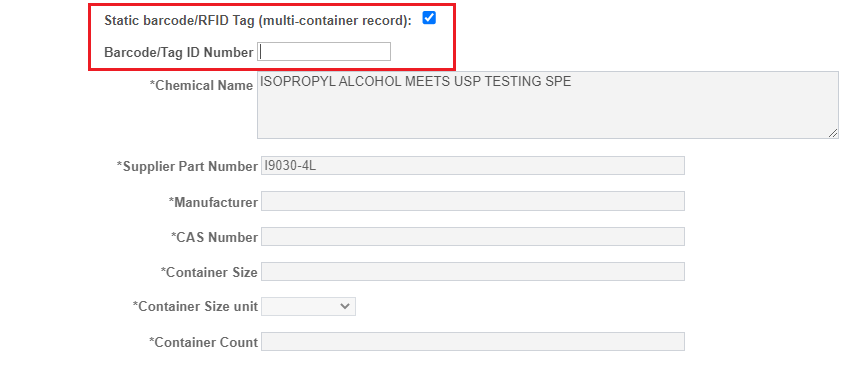
- On the FMS Edit Requisition checkout screen, users can enter the static RFID tag ID for the chemical to be purchased and all other fields are grayed out
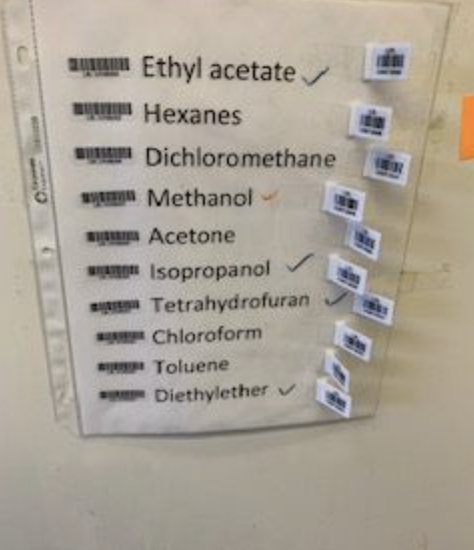
- TIP! Keep a list of your static inventory items and associated RFID tag IDs for easy reference. When you set up the static inventory, print or make an extra copy and post it near the computer used for ordering.
- Reduce inventory burden on high throughput chemicals
- Don’t have to remember to remove RFID tags from containers when “used up”
- No need to update CMS as long as it is accurate (i.e. maximum quantity that will be stored is represented)
- Supports an accurate inventory by streamlining management tasks and reducing reliance on human performance
How to Set Up a Static RFID Inventory for New Containers
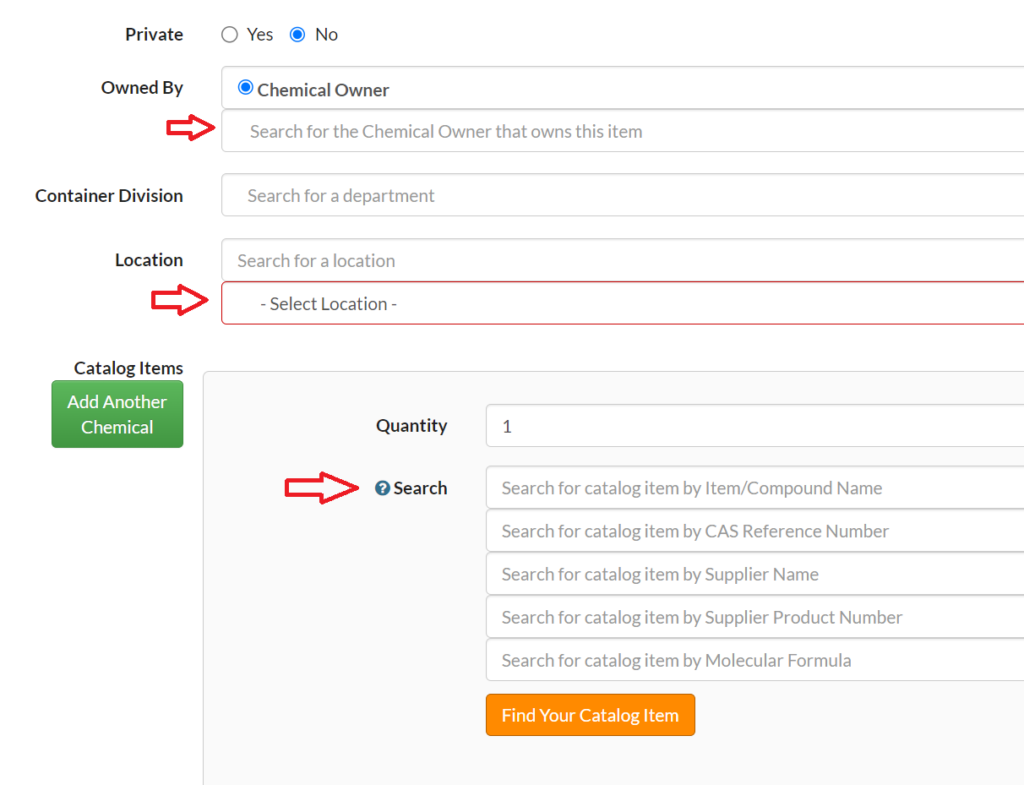
- First create an entry in CMS for the hazardous chemical
- Enter in the Chemical Owner and select the Storage Location from the drop down menu
- Then search for the catalog item/product using the compound name, CAS#, Supplier Name, Supplier Product # (preferred), or Molecular Formula. Select the entry with the correct volume/mass.
- If the catalog item/product is not in CMS, create a new entry
- Enter in the required information
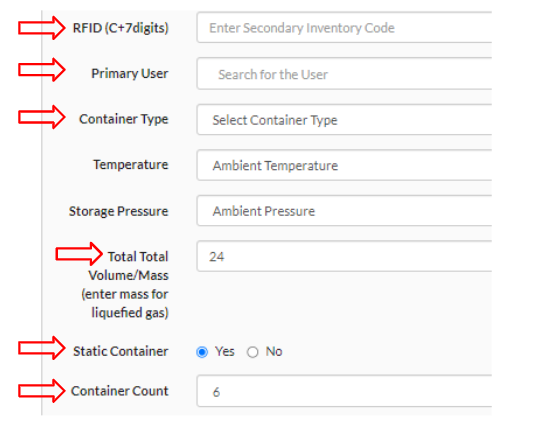
- “Volume/Mass” should be entered as the total maximum amount on-site at any given time (i.e. expect to have max 6 x 4 L bottles. “Volume/Mass” would be entered as 24 L)
- Check Yes for Static Container and enter the container count.
- Download and print the “Static RFID Tag / Multi-Container Sheet Template” (editable version).
- Fill in sheet with accurate information that was entered into CMS and attach RFID tag to the sheet
- Use RFID flag tags for inventory sheets that will be posted on metal cabinets to avoid signal interference.
- Poly sheet protectors are recommended to protect paper from damage over longer storage times. RFID flag tags should be applied on the outside of the poly sheet protector in this case. Sheets may also be laminated, then RFID tags added to the laminated sheet, for the best level of protection.
- Post sheet on or near chemical storage location.
- Fill in sheet with accurate information that was entered into CMS and attach RFID tag to the sheet
- See the CMS Inventory Guide (Section 3) for examples of completed inventory sheets.
How to Convert Existing Container(s) to Static RFID Inventory
- To convert existing containers to static inventory management, remove RFID tags from chemical container(s) that will be converted to static inventory management.
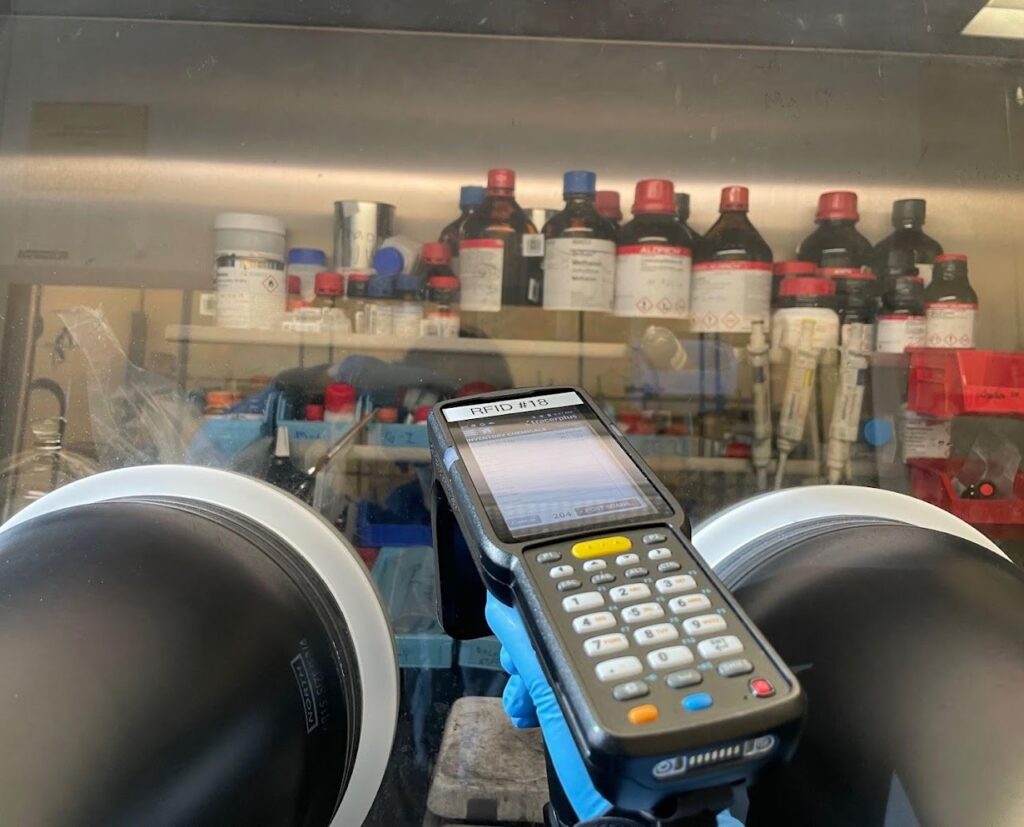
- Search for relevant CMS record(s) by looking up RFID tag ID(s).
- Select one container record to be converted to the static inventory record
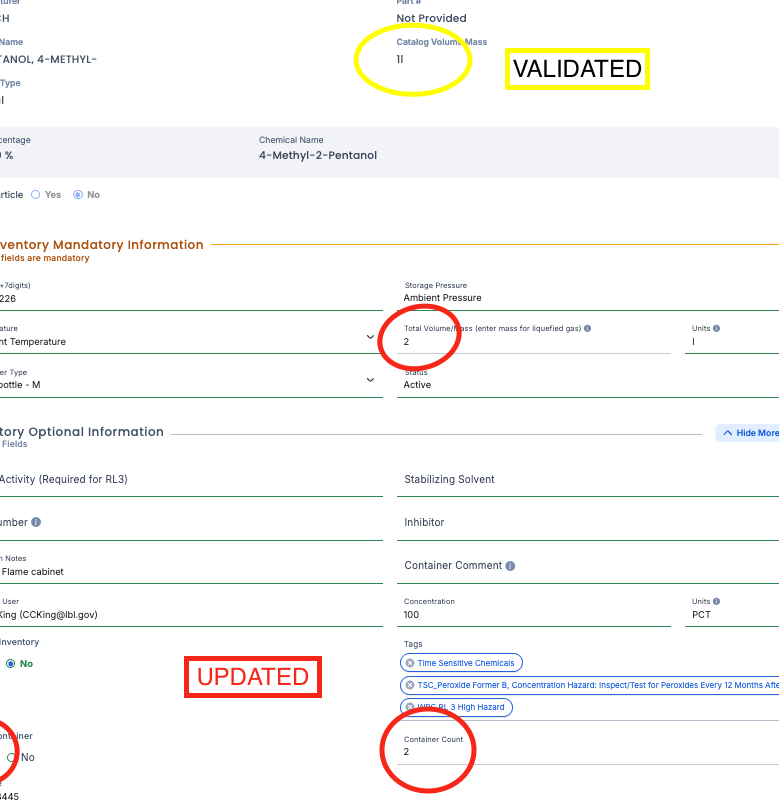
- “Edit” the container record. Enter the new RFID tag ID that will be used for static inventory management of the container(s). Verify fields are accurate. Validate and update fields per example below to account for static inventory, count, container size, and the maximum total volume/mass of container(s) that will be stored.
- “Dispose” of any additional records and select the disposal pathway, “Used up”
- Select one container record to be converted to the static inventory record
- Follow steps in the section above starting with: Copy, CMS export, and print the “Static RFID Tag / Multi-Container Sheet Template”.

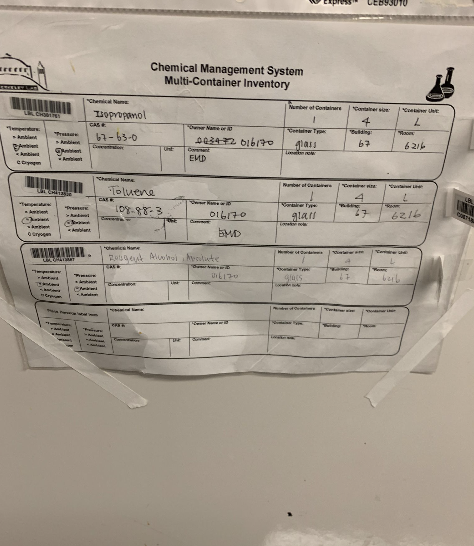
Good static inventory sheet
Poly sheet protector for inventory sheet
Solvent can damage datasheets posted on cabinets below fume hoods
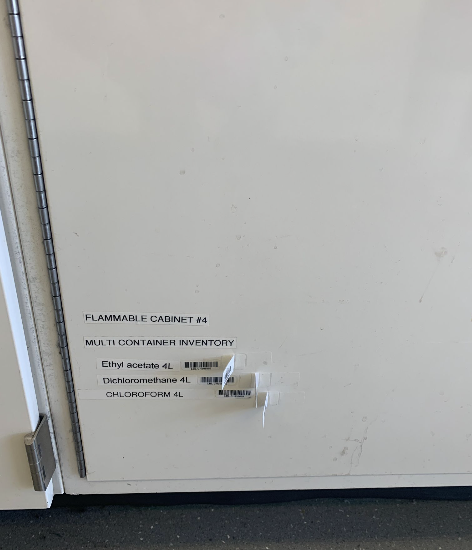
Acceptable datasheet (includes volume/mass and quantity)
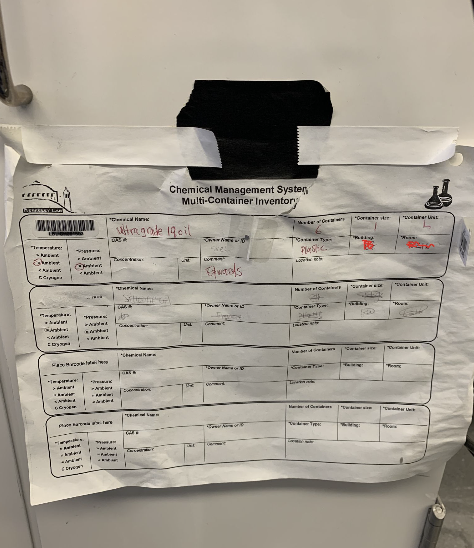
Insufficient datasheet (volume/mass and quantity missing)
Ordering Chemicals on a Static RFID Tag
- Add chemicals to be purchased to cart in FMS and proceed to checkout.
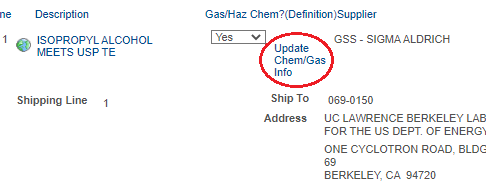
- Ensure that under “Gas/Haz Chem?(Definition)” the answer “Yes” is selected
- Then click on “Update Chem/Gas Info”
- Check the box next to “Static barcode/RFID Tag (multi-container record)”
- Enter the RFID tag ID (always starts with a C) in the “Barcode/Tag ID Number” box.
NOTE: the requisition will be automatically denied if an invalid RFID tag number, or a number that doesn’t exist in CMS is entered, and a new requisition needs to be submitted. - Review info and submit requisition for approval
- Upon receiving chemicals, a best practice is to update the “receipt date” in CMS